 DPP Knowledge Base
 Getting started: your first passport
From an empty computer to a published Digital Product Passport that anyone can open – with the DPP Manager, the DPP Service of OwnYourData and a custodian at a data intermediary. Eight steps, one screenshot each.
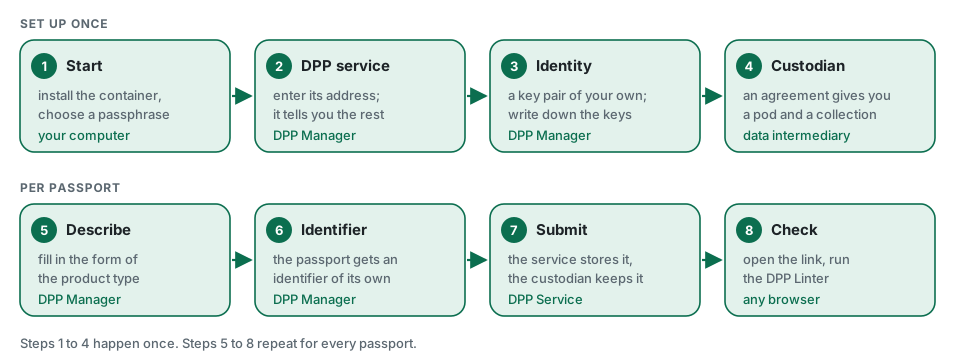
In short
- You need the DPP Manager on your own computer, the address of a DPP service, and – if your passports are to be kept by a custodian – an agreement with a data intermediary.
- The setup takes four steps and is done once: start, service, identity, custodian.
- Every passport then takes four more: describe the product, create its identifier, submit it, check it.
- At the end, the link on the product opens the passport in any browser, and the DPP Linter checks it against the published standards.
- Everything here was done with a made-up product: an LED bulb from the fictitious Example Lighting GmbH.
Before you start
The example in this article uses three free services:
| What | Who runs it | What it does here |
|---|---|---|
| DPP Manager | you, on your own computer | holds your keys, describes the product, signs and submits |
DPP Service at dpp-service.ownyourdata.eu |
OwnYourData | receives the passport through the API of EN 18222 and keeps the index |
Custodian at projects.go-data.at |
DID Daten-Intermediär-Dienste FlexCo, a separate organisation registered as a data intermediary | keeps the passport and serves it at the link on the product |
The custodian is optional. Without one, the DPP Service keeps the passport itself – skip step 4 if you only want to try things out.
1. Start the DPP Manager
The DPP Manager runs as a container. With Docker Desktop, Podman Desktop or Rancher Desktop installed, three lines start it:
mkdir -p ~/Documents/dpp-manager && cd ~/Documents/dpp-manager
curl -fsSLO https://raw.githubusercontent.com/OwnYourData/dpp-manager-public/main/docker-compose.yml
docker compose up -d
Open http://localhost:3000 and choose a passphrase. It encrypts the one file in which the DPP Manager keeps everything. Nobody can reset it – write it down. The installation guide also covers the route without a terminal.
Keep it up to date. In the same folder, one line fetches the latest version and recreates the container. Your data file stays where it is, in the folder data:
docker compose pull && docker compose up -d --force-recreate
Use version 0.1.8 or later; the version is shown at the bottom of every page. Up to version 0.1.6, the DPP Manager wrote the passphrase in plain text into the container’s log; recreating the container removes that old log. If you have passed a log of the container on to anyone, change the passphrase under Data file – see the changelog. Since 0.1.8, a form is no longer lost when the data file locks itself (see step 5).
2. Choose the DPP service
The setup starts with the service your passports are written to. Enter its address – here https://dpp-service.ownyourdata.eu – and press Check and continue.
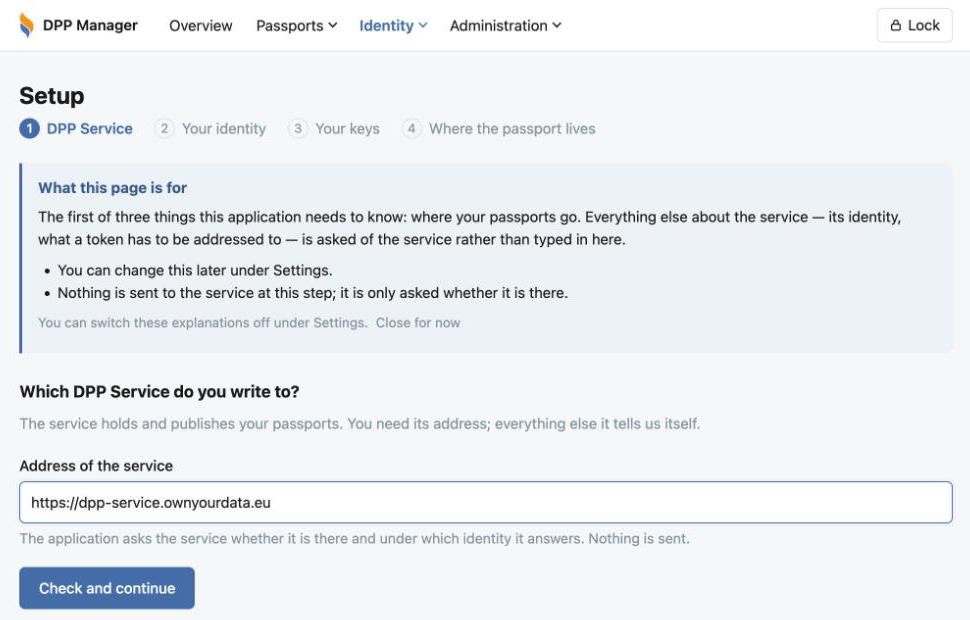
The DPP Manager only asks the service whether it is there and under which identity it answers. Nothing about you is sent yet.
3. Create your identity
Next comes your identity as an economic operator: a key pair, created on your computer. The name you give it is only for your own overview.
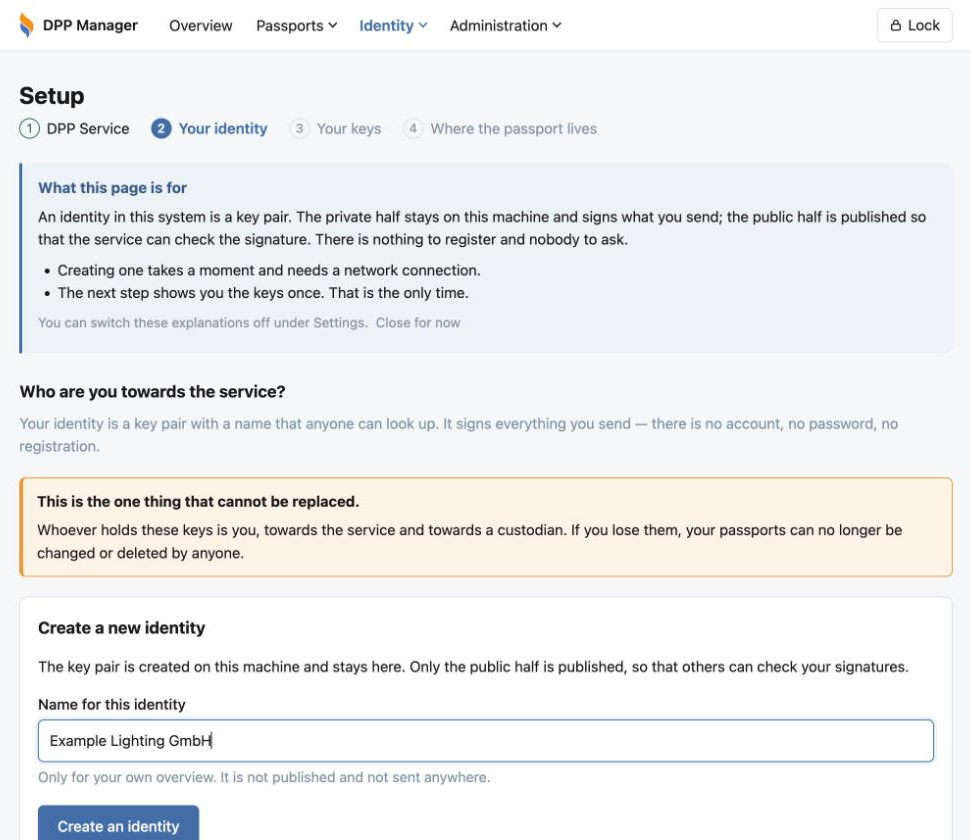
Create an identity publishes the public half as a did:oyd identifier. The next screen shows two keys – a document key and a revocation key. Press Write the key file, keep a copy somewhere safe and confirm that you have stored them; after that, they are not shown again: whoever holds these keys speaks for your company, and without them your passports can no longer be changed.
4. Get a custodian
A custodian keeps your passports and serves them at the link on the product. The DPP Service then only points at them. To use the data intermediary of DID FlexCo, sign in at projects.go-data.at with ID Austria or an EU Digital Identity Wallet – there is no separate sign-up. Then add a New Data Offering with the use case DPP Hosting:
- Data Models: the product types you want to keep there, for example
DppLedLampandDppBatteryfrom soya.ownyourdata.eu. - Policies: the purposes, the storage location and how long the data is kept.
- Access: the identity from step 3 as the controller of the storage, and whether third parties get contractual read access. The access the law provides for under the ESPR is not affected either way.
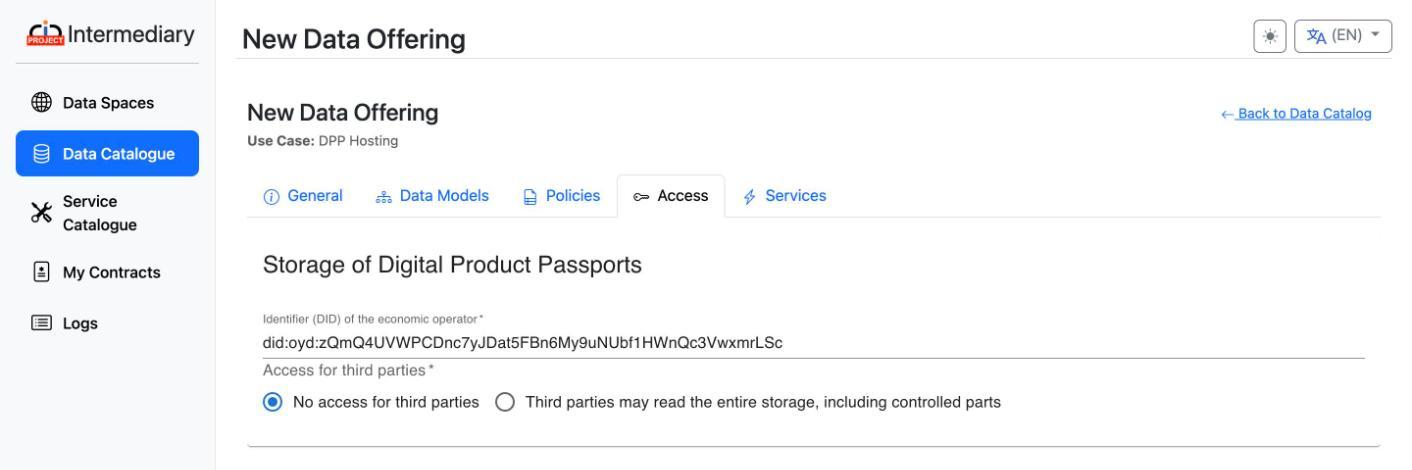
Press Save, then Sign. Under My Contracts, the details of the new agreement show the two values the DPP Manager needs: the address of the storage service and the number of your collection. Neither is secret.
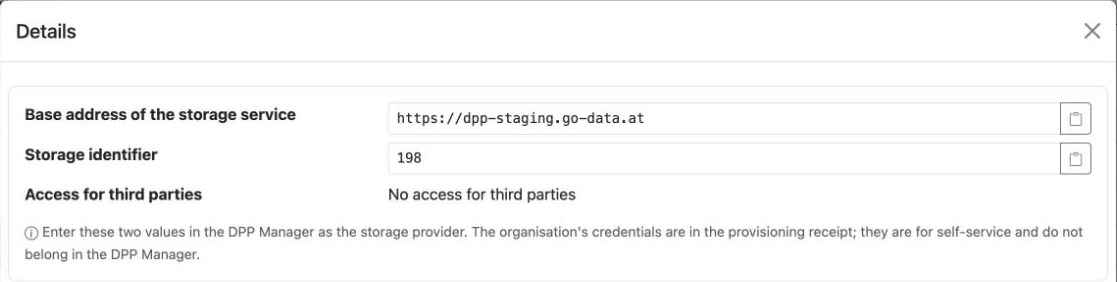
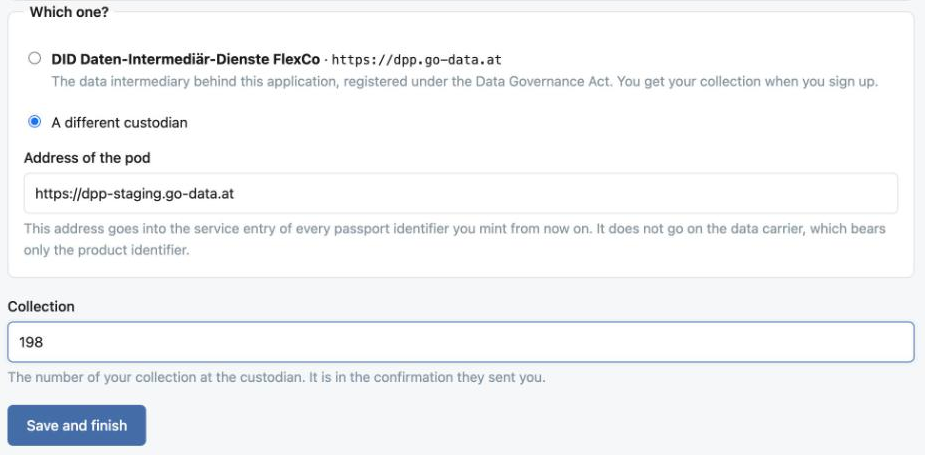
Back in the DPP Manager, enter both values in the last setup step. If the address differs from the one shown next to DID FlexCo, choose A different custodian and type it in. Then Save and finish.
5. Describe the product
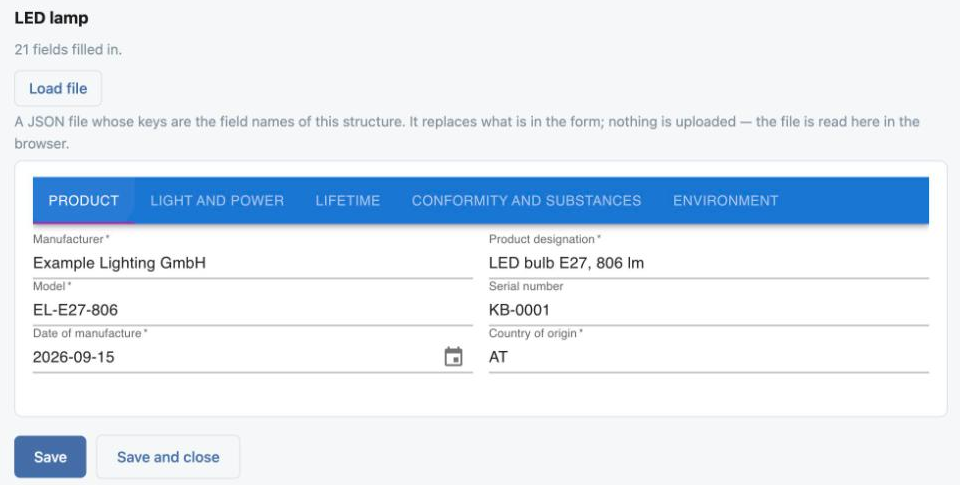
Under Passports, start a new passport of a product type – here LED lamp. The top of the form is the same for every product:
- Product identifier – the link printed on the product, usually a GS1 Digital Link. Our example uses
https://dpp-staging.go-data.at/01/09520123000011/21/KB-0001: GTIN09520123000011from GS1’s range for examples, serial numberKB-0001. A real product would carry a link on your own domain, pointed at the custodian. - This passport describes – a model, a batch or one item. For a Digital Link it is read from the path:
/21/means one item.
Below follows the form of the product type, in tabs. Required fields are marked; a draft is saved even when it is incomplete.
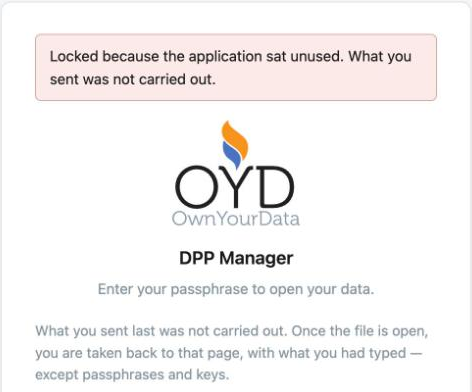
Locked in between? When the DPP Manager sits unused for longer than the time set under Settings – 15 minutes unless you change it – the data file locks itself. What you send after that is not carried out, and the unlock screen says so. Once you have entered your passphrase, you are back on the form with what you had typed, except passphrases, keys and files; press Save again. The event log records the lock together with the action that was not carried out.
6. Create the passport identifier
Each passport gets an identifier of its own, separate from your identity. It records where the passport can be read – so the product identifier and the custodian have to be right before you press the button.
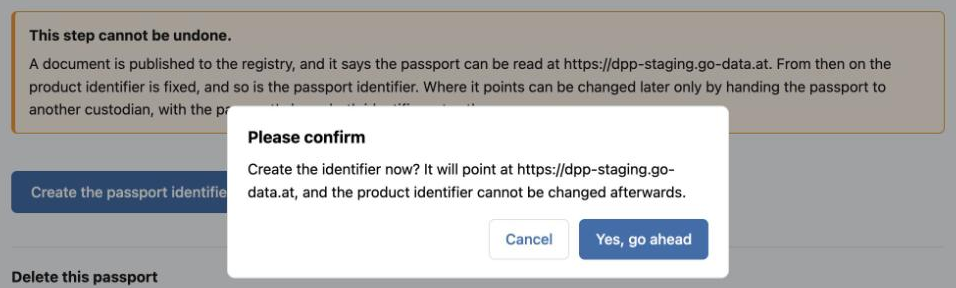
Create the passport identifier opens a confirmation in the DPP Manager itself – Yes, go ahead or Cancel; Escape cancels, too. From then on, the product identifier and the passport identifier are fixed. Where the identifier points can still change: handing the passport to another custodian moves it, with the passport’s keys, and both identifiers stay the same.
The next screen shows the passport’s two keys, just like your identity’s. Write the key file again and confirm that you have stored them; after that, they are not shown again. Without these keys the passport can still be read, but never handed to another custodian or retired.
7. Submit
Submit to the DPP Service assembles the passport in the data model of EN 18223, signs it with your identity and sends it, after one more confirmation. The service checks the passport identifier before it stores anything: it has to point at the host where the passport will be read – the custodian’s, when one holds it.
All times in the DPP Manager are shown in UTC and labelled so – the same time base as the event log, the DPP Service and the custodian.
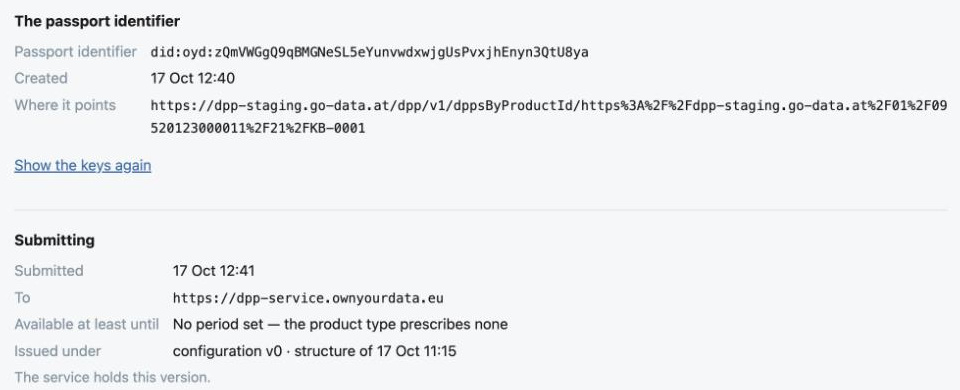
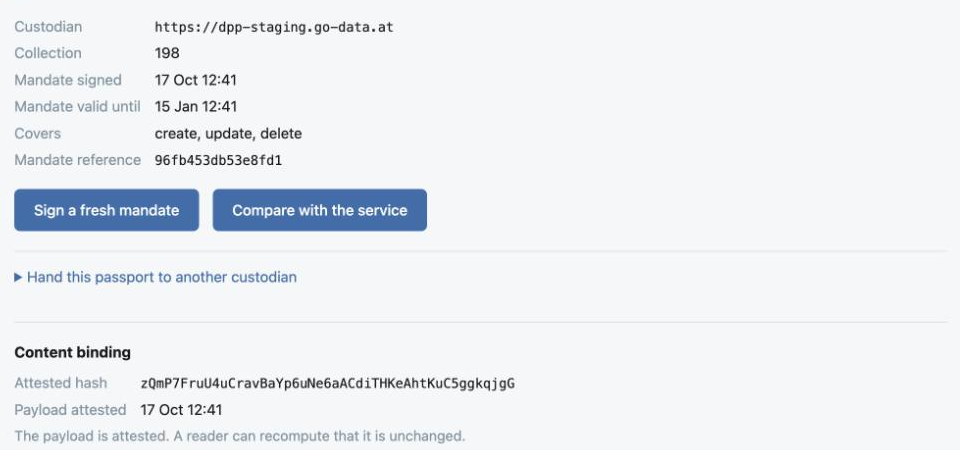
With a custodian set, the DPP Manager signs a mandate at the same time: this service may keep this one passport in this one collection, for 90 days. A fresh mandate is one click. A hash of the content is also recorded in the passport identifier’s log – the content binding that lets any reader check that nothing was changed.
8. Open and check it
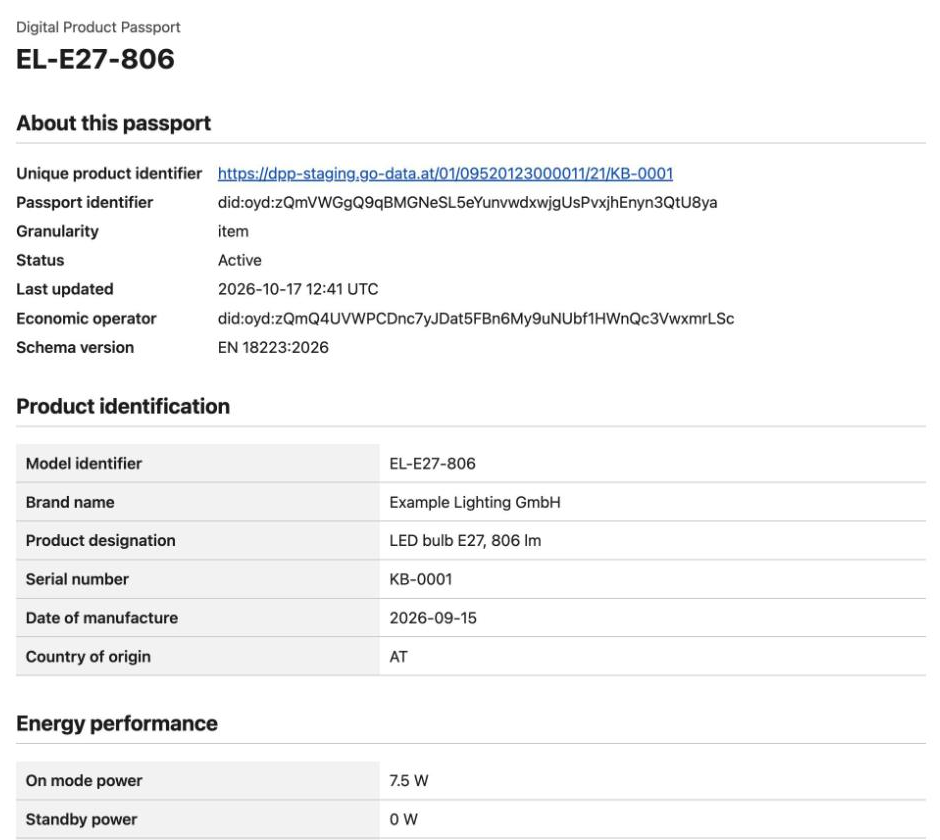
The passport is now live. Open the product identifier in any browser – a phone camera scanning a QR code with that link does the same:
Then paste the same link into the DPP Linter. It fetches the passport the way any reader does and checks it against the criteria derived from EN 18219, EN 18223 and the regulations.
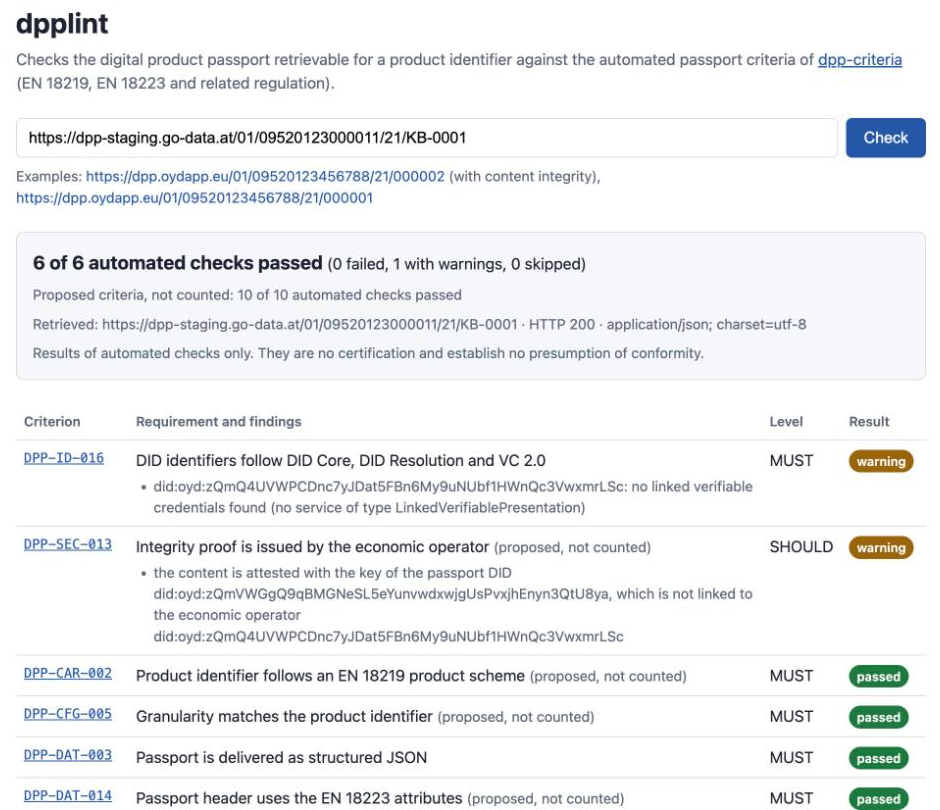
The warnings are expected for now. DPP-ID-016: the operator’s identity is self-issued and carries no credentials from a trusted body yet – one of the points still open in the CIRPASS-2 comparison. DPP-SEC-013, a proposed criterion: the content is attested with the key of the passport identifier, which is not yet linked to the operator’s identity.
What comes next
- Decide who reads what. Switch on access classes for the product type, and the parts that are not public go only to readers with the right access. See Role-based access.
- Correct the passport. Change the answers and send a correction; every version stays readable by date.
- End it. At the end of the product’s life, End the passport stops serving it and revokes its identifier.
- Batteries. The DPP Manager ships a second product type, the traction battery – see Battery passport.
The example passport describes a product that does not exist. It was created in the intermediary’s test environment, which is reset regularly – so its link may no longer work when you read this. Your own passport, with your own link, works the same way.
Try it yourself
The DPP Manager is free and open source, and the public DPP Service and the DPP Linter need no account. All you need is a computer that runs containers.
Further reading
- DPP Manager – installation guideDocker Desktop, Podman Desktop or Rancher Desktop, with and without a terminal
- DPP Manager walkthroughone passport from first start to the end of its life, in more detail
Related articles
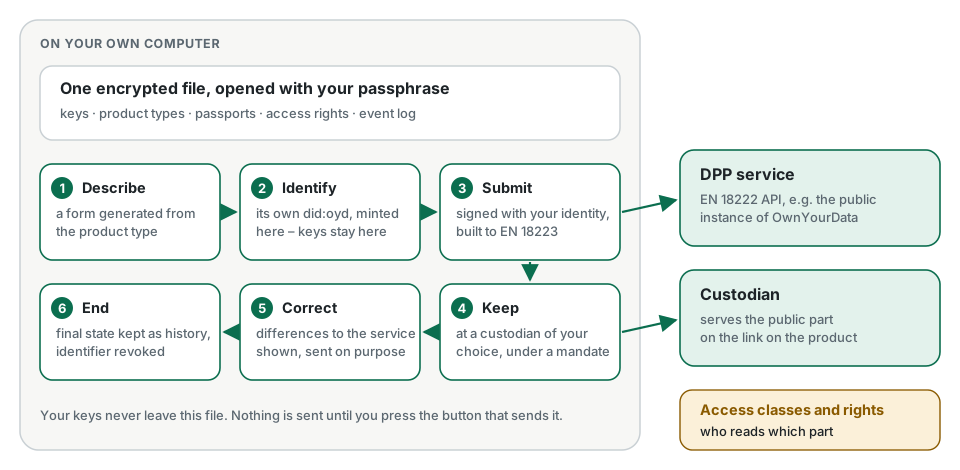
DPP Manager: create and manage passports on your own computer
A free application for economic operators. Describe products, issue passports, keep them at a custodian of your choice and decide who reads what – with your keys and data in one encrypted file on your own machine.
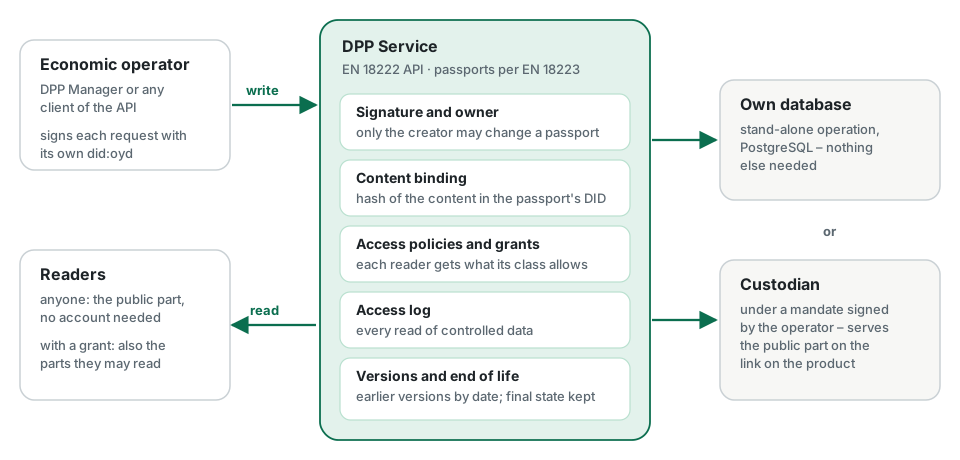
DPP Service: an open implementation of the EN 18222 passport API
The open-source service that stores, versions and serves Digital Product Passports through the standard lifecycle API – with signed writes, content binding, role-based access and an access log. Use our public instance or run your own.
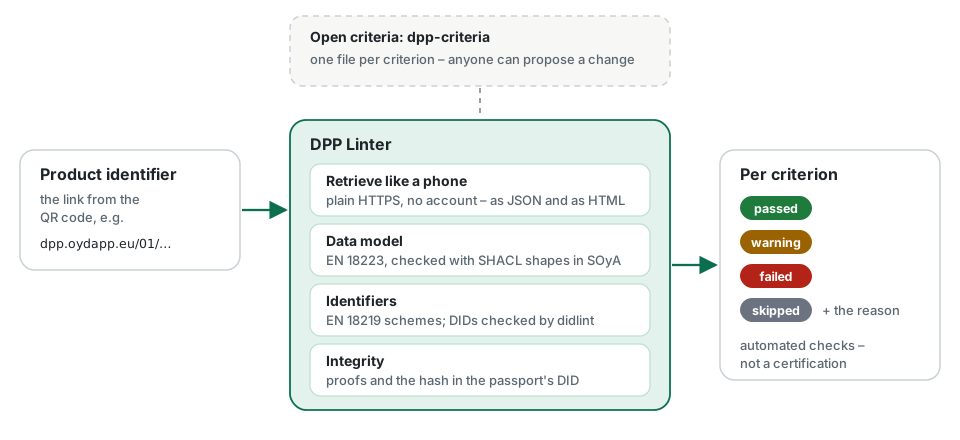
DPP Linter: check any passport against the standards
Enter the link from a product's QR code and see, criterion by criterion, whether its passport can be read, follows the EN 18223 data model, uses valid identifiers and can be checked for integrity. Free, open source, no account.